Getting Started on Mobile
Access your network from your phone or tablet
Netrinos on mobile lets you reach your network devices from anywhere. Install the app, log in with your Netrinos account, and your devices are there.
Step 1: Install the App
Download Netrinos from the App Store (iPhone/iPad) or Google Play (Android).
Your network needs at least one other device running Netrinos. If you haven't set up Netrinos yet, start with the desktop Getting Started guide first.
Step 2: Log In
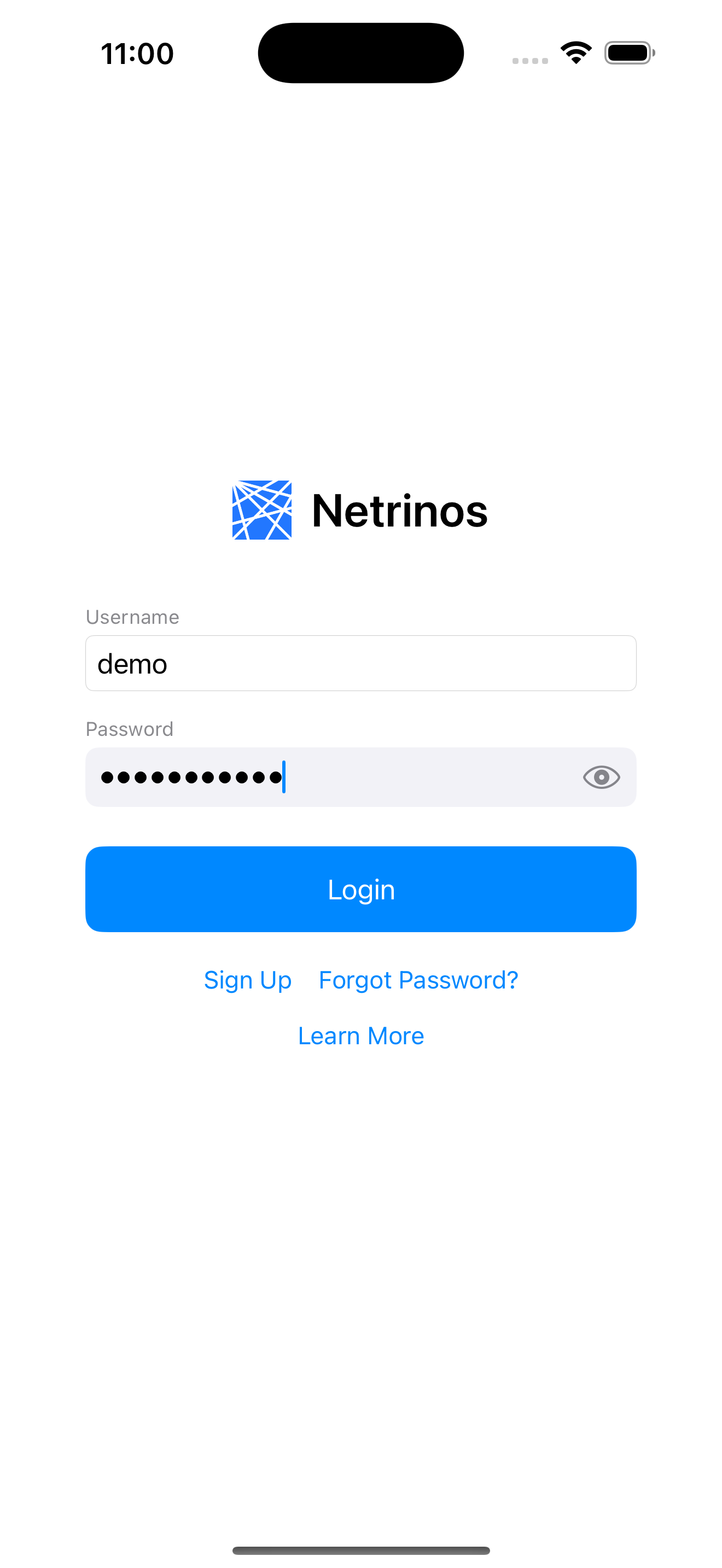
Use the same username and password as your desktop devices. Your username defines your network: all devices logged in with the same account can see each other.
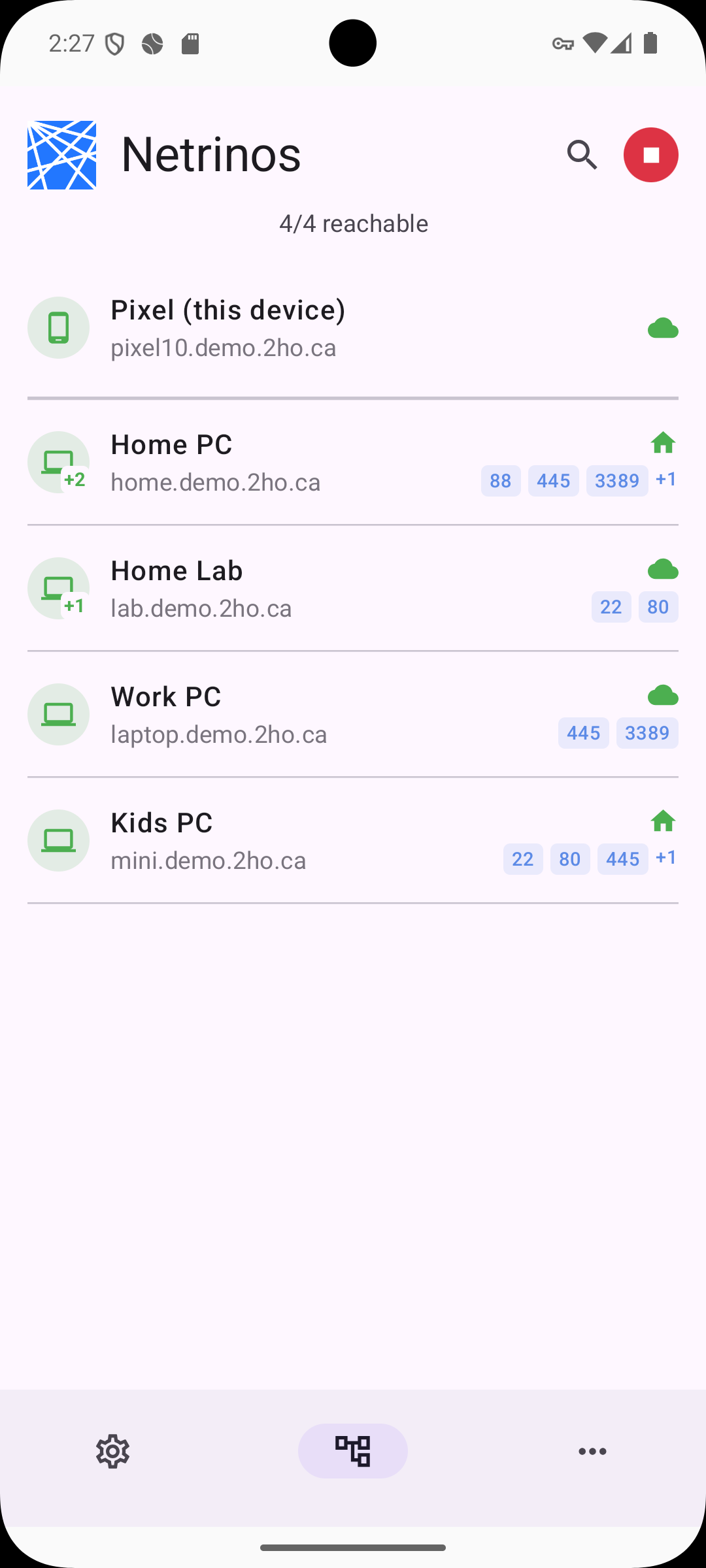
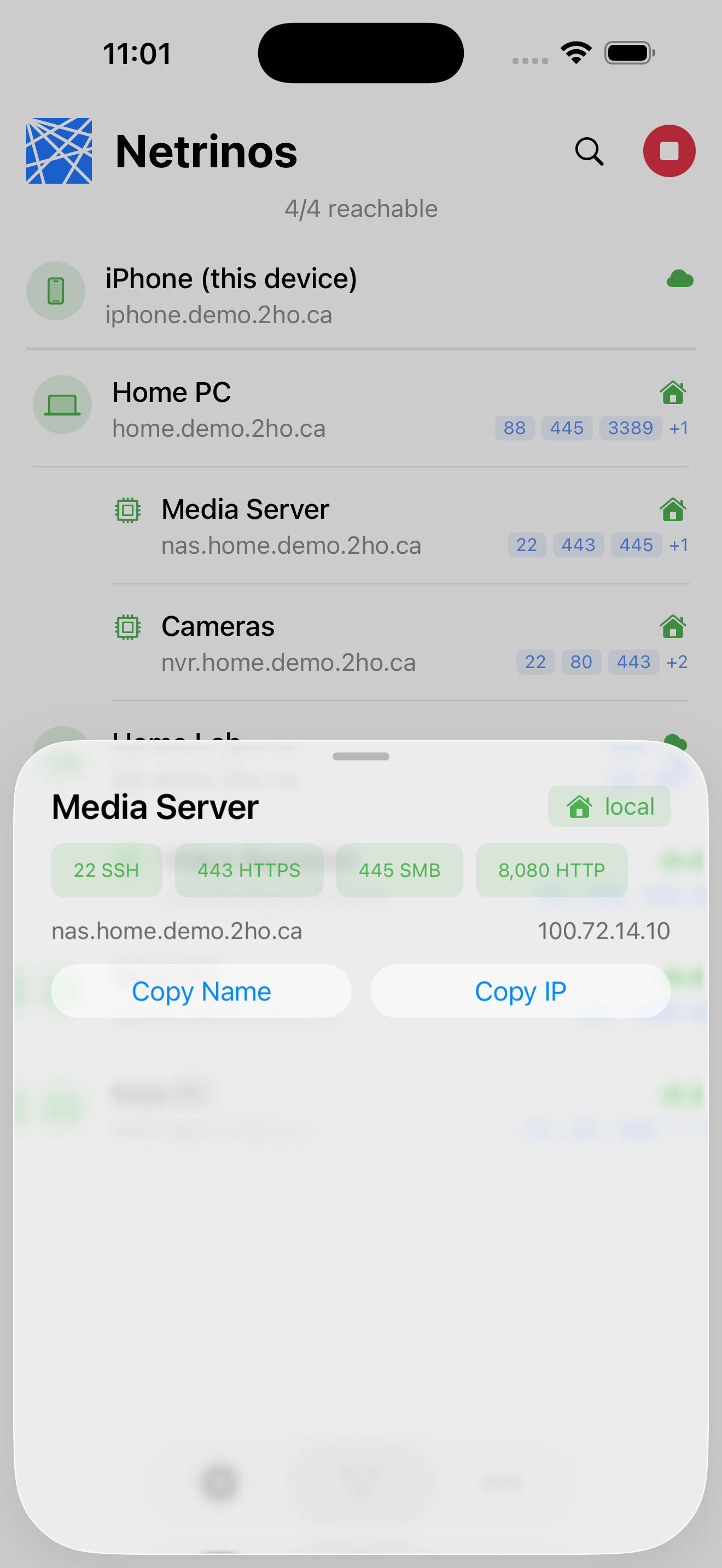
Within a minute, your phone will sync and all your devices will appear in the list. Each device has a static IP address and a friendly DNS name (e.g., laptop.demo.2ho.ca) that stays the same wherever you go.
Devices that are greyed out are offline (sleeping, powered off, or without an internet connection). They reappear automatically when they come back online.
Step 3: Access Your Devices
Tap any device to see its Netrinos name, IP address, and available services. Virtual Devices (cameras, NAS, servers shared by a desktop device) appear nested underneath.
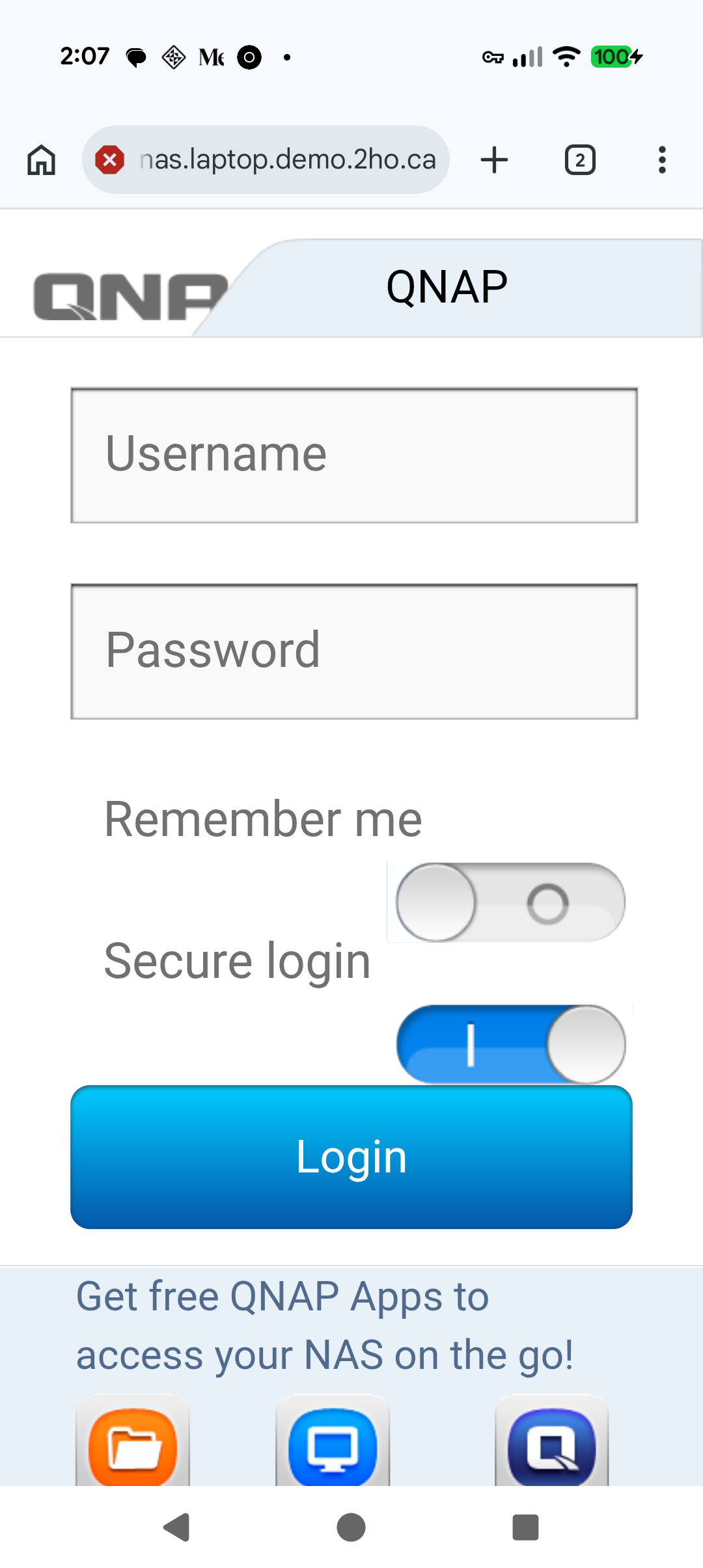
Tap a service to open it. Web interfaces open in your browser. For other apps (camera viewers, RDP clients), copy the device name or IP and paste it into the vendor's app.
You can rename devices and manage your account at app.netrinos.com.
What Can You Do from Mobile?
Access any device on your network: cameras, NAS, servers, remote desktops. Any app that connects by IP or hostname works over Netrinos.
Virtual Devices, gateways, and access control are configured on the desktop or server device that hosts them. Mobile devices access what's already shared.
Need help? See our Desktop Getting Started guide or contact support.