Netrinos for Docker
Run Netrinos in a container on a NAS or home server
What It Is For
Netrinos for Docker runs the Netrinos client in a container. It is built for NAS units and other Linux hosts where installing the native package is awkward or not allowed. Once the container is running, your laptops, desktops and phones reach the host by name, including its file shares, its admin page and its apps. The host needs no open ports and no port forwarding.
On an ordinary Linux server or desktop, use the native Linux package instead. It updates itself, and the container does not.
Requirements
- Docker on a Linux host, amd64 or arm64.
- Host networking, the
NET_ADMINcapability and the/dev/net/tundevice. The compose file sets all of them. - A Netrinos account.
Docker Desktop on Windows and macOS is not supported. It runs containers in a virtual machine that cannot reach the host's network.
Installing
The full instructions, the compose file and the settings for each container app are on the download server.
Installing Netrinos for Docker
The container starts logged out, and the host appears in your device list within a minute of logging in. On a NAS, follow the platform guide for your container app.
From the Command Line
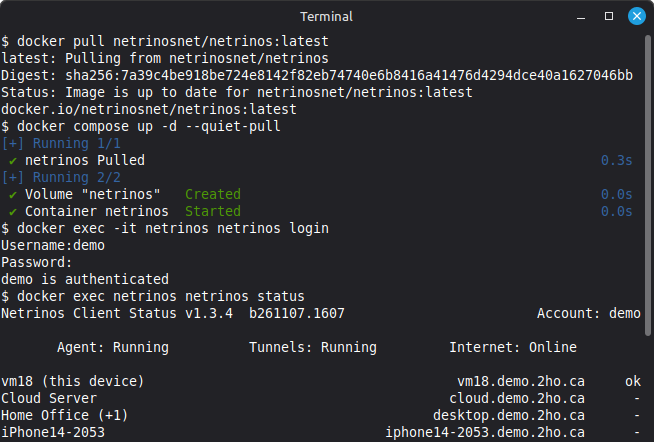
Download compose.yaml into an empty folder and start the container with docker compose up -d.
Log in with docker exec -it netrinos netrinos login, then check that the host joined with docker exec netrinos netrinos status.
Join by Invitation
An invitation joins the host without a password. In the portal, go to Devices, click Invite a Device and copy the code. The code works once and expires after an hour.
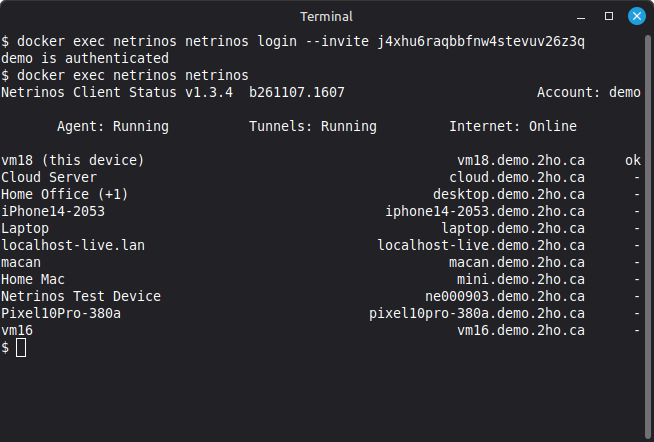
From the container's console, run netrinos login --invite followed by the code.
If your container app has no console, set the code as the container's NETRINOS_INVITE environment variable instead. The host joins on its first start.
Platform Guides
Netrinos for Docker runs on any Linux host with Docker, on amd64 and arm64. The installation guide has settings for QNAP Container Station, Synology Container Manager, TrueNAS SCALE, Unraid and Portainer, as well as for plain docker compose and docker run.
QNAP Container Station
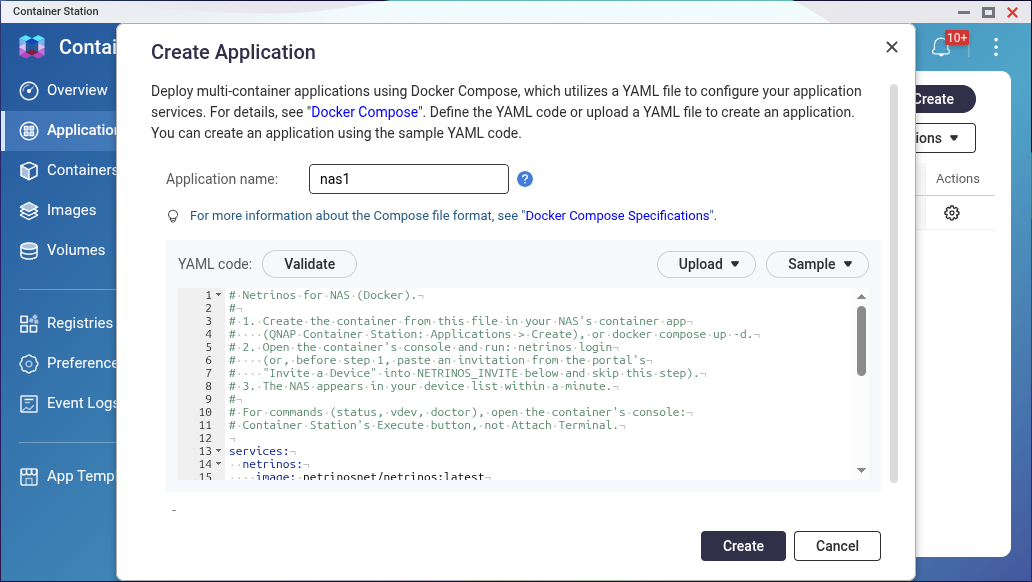
In Container Station, go to Applications and click Create. Paste in compose.yaml, name the application and click Create.
Then open the container's console with its Execute button, not Attach Terminal, and run netrinos login.
Other NAS container apps accept the same file under a different name. Synology Container Manager calls it a Project, and Portainer calls it a Stack.
What the Host Can Do
- Be reached by name from every device in your account.
- Reach your other devices and the Virtual Devices behind them, for example to back up to a second NAS at another site.
- Act as a gateway for its local network, with
netrinos gateway yes. - Give devices on its local network, such as cameras and printers, their own name and address as Virtual Devices. Manage them with
netrinos vdevin the container's console. - Enforce the access control set in the portal.
- Stay connected on networks that block UDP, by falling back to TLS on port 443.
Opening a Share
The host does not appear under Network in File Explorer or in the Finder sidebar. Those lists find devices by broadcasts on the local network, and broadcasts do not travel over Netrinos. Open the share by the host's Netrinos name instead. In these examples the host is named nas.
- Windows File Explorer:
\\nas.<your account domain> - macOS Finder, Go > Connect to Server:
smb://nas.<your account domain>
Map it as a drive or add it to Favorites to keep it.
Limitations
- On NAS kernels without nftables, such as QNAP's, the host cannot send its own traffic through another gateway. It cannot reach another site's local network through a route, and it cannot send its Internet traffic through a gateway. It can still act as a gateway for your other devices.
- There is no web interface. Use the container's console for status and Virtual Devices.
- Netrinos cannot update itself inside a container.
netrinos statusshows when a new version is available. Pull the new image and recreate the container. The login is kept in thenetrinosvolume, so you do not log in again.
Questions?
See Getting Support if the container does not join your network.